
Chapter 4 of 14Accounts & Ingestion 5 min read
Transactions, Triage & Merchants
Filter and search your unified ledger, split multi-category bills, review incoming SMS/Email items in Triage, import CSVs, and inspect merchant history.
Browsing, Filtering & Adding Transactions
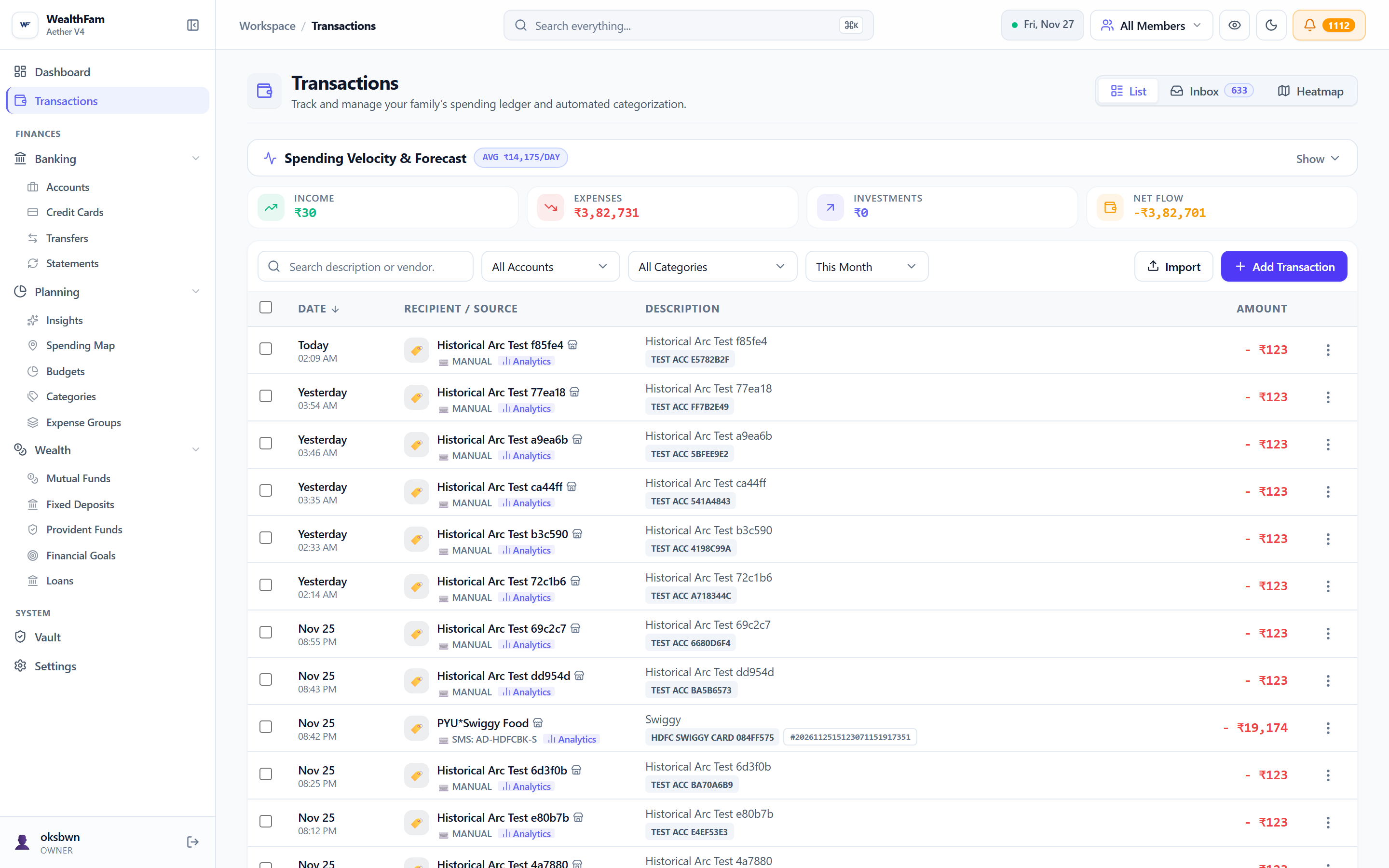
The Transactions view is engineered for fast scanning and rock-solid accounting accuracy. Living Expenses automatically net refunds against debits, Investment outflows stay separate from expenses, and Transfers never inflate your spending.
Step-by-Step
- 1Use the compact top toolbar to filter by Search, Account, Category, Date Range (defaults to This Month, with presets up to All Time), or click quick category pills.
- 2Toggle the collapsible Spending Velocity & 30-Day Forecast drawer whenever you want to compare your daily burn rate against your monthly pace.
- 3Click + Add Transaction to log cash or manual entries as Expense, Income, or Investment—or click Import CSV to migrate historical records with column mapping and preview mode.
- 4Click any merchant name to open its dedicated Merchant Details page showing lifetime spend and visit history.
app.wealthfam.in/transactions
 Tap to zoom
Editing, Linking & Bulk Actions
Click any row to open the Transaction Modal for full control over how that entry is categorized and reported.
- Smart Categorization & Bulk Rename: Update merchant names across past entries, apply rules retrospectively, and inspect lifetime vendor stats.
- Expense Groups & Loans: Assign a transaction to a trip/event Expense Group or link an EMI debit directly to a Loan.
- Attach Vault Receipts: Link PDF invoices or scanned receipts directly from your encrypted Document Vault.
- Exclude from Reports: Hide reimbursable work expenses or one-off anomalies from monthly budget math without deleting them.
Transaction Triage (Review Queue)
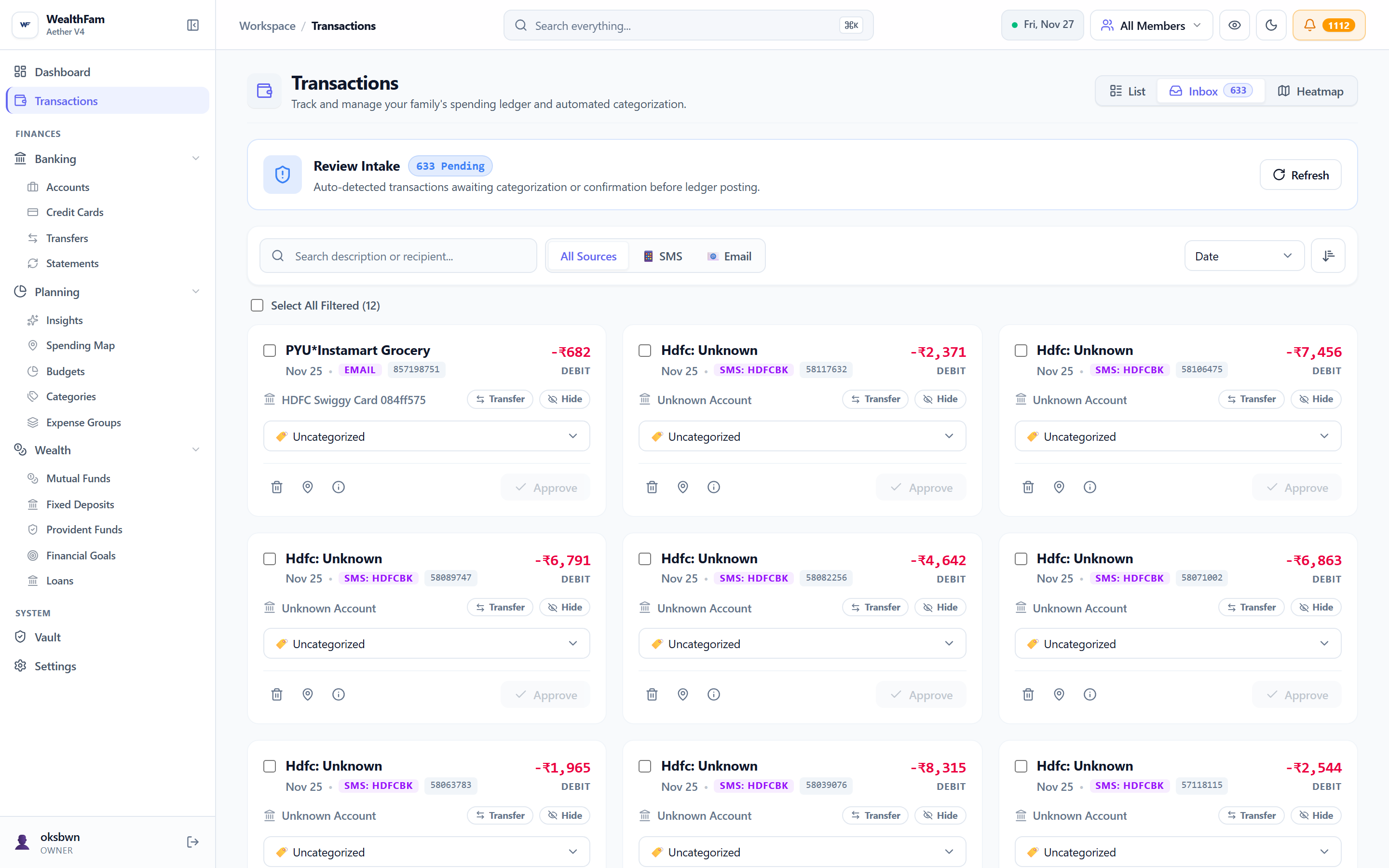
Whenever an incoming SMS or email has low categorization confidence or a brand-new merchant, WealthFam holds it safely in the Triage Queue for your quick approval.
Step-by-Step
- 1Switch to the Triage tab inside Transactions (or jump straight from the Attention Hub).
- 2Inspect the extracted merchant, amount, account, and suggested category.
- 3Edit if needed and click Approve—or select dozens of items and Bulk Approve in one click. Discard duplicates or non-relevant alerts anytime.
app.wealthfam.in/transactions
 Tap to zoom